Everything about each association, in one record.

Homes and homeowners, the board, common areas and assets, utility accounts, service providers, the annual budget and the approval rules — kept together, so every work order starts with the facts.
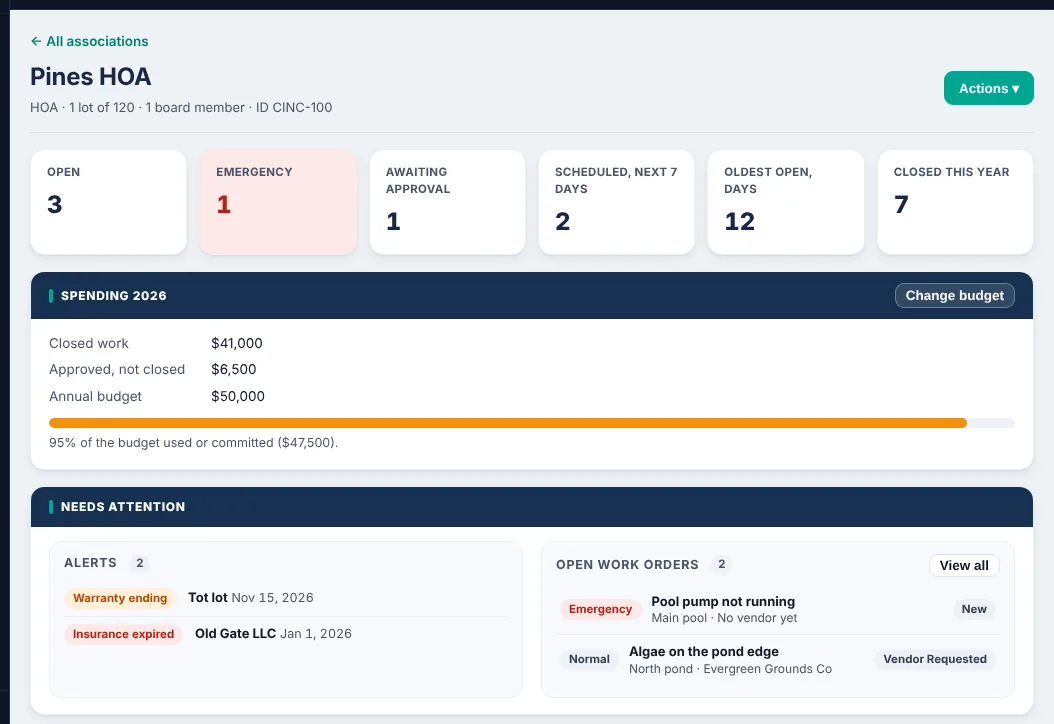
Association page: open, emergency, awaiting approval, scheduled, oldest open and closed counts, spending against the annual budget, and items that need attention
01The association page

Open one association and see where it stands.

Each association has its own page. The top of it answers the questions a board president asks first.

Six live counts

  • Open work orders
  • Emergencies
  • Awaiting approval
  • Scheduled in the next 7 days
  • Days the oldest open job has waited
  • Closed this year

Spending against the budget

  • Closed work and approved-but-not-closed work for the year
  • The annual budget you set for the association
  • A meter of the budget used or committed: amber from 80%, red above 100%

Needs attention

  • Asset warranties ending or ended
  • Vendors working here with no insurance on file, expired or ending
  • The open work orders, emergencies first, with a link to all of them
02Actions menu

Everything you add to an association, from one menu.

The Actions button on the association page holds every way to add to its record. Each item shows only to people whose role allows it.
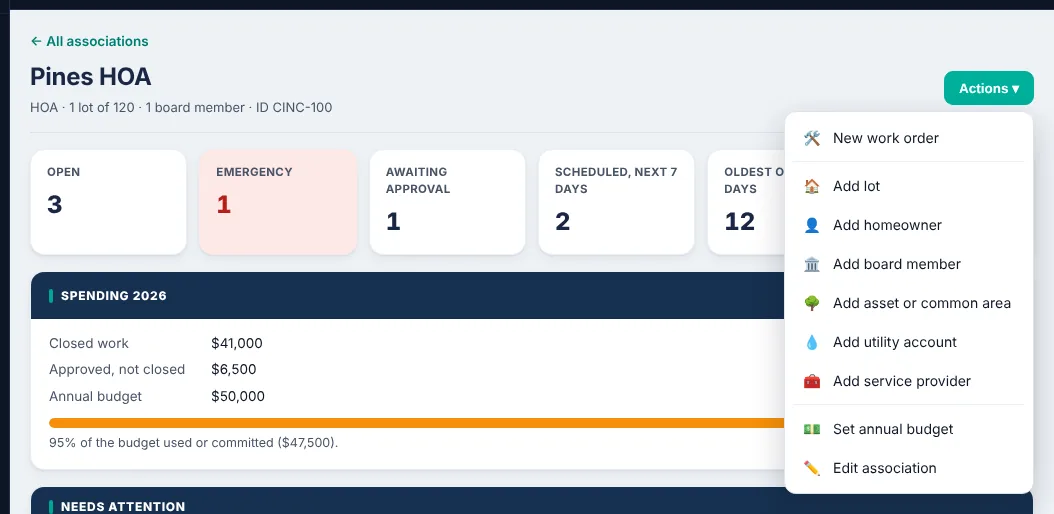
  • New work order — for a lot, an asset or the common area
  • Add lot and Add homeowner
  • Add board member
  • Add asset or common area
  • Add utility account
  • Add service provider
  • Set annual budget
  • Edit association — name, type, number of lots, billing platform ID, active (company admins)
Association page with the Actions menu open: new work order, add lot, add homeowner, add board member, add asset, add utility account, add service provider, set annual budget, edit association
Sample data
03Lots and homeowners

Every home, and who lives in it.

The lots table is searchable and shows each home with its homeowners.

Lots

  • Lot number and street address
  • Billing ID from your accounting platform
  • “Tenant occupied” when the owner does not live there
  • Lots are never deleted, so a home’s history stays intact

Homeowners

  • Name, email and phone
  • How they get updates: email, text message, both, or none
  • Active or inactive, so a previous owner keeps the record but loses access
  • More than one homeowner per lot

Homeowner Portal access

  • Invite to portal by email, and Resend invite
  • Remove login keeps the homeowner record
  • Editing a homeowner keeps their login linked
04Board members

The board, with offices and terms.

Board members are what the approval rules use: officers approve mid-size quotes and the board votes on the large ones.

Seats and offices

Name, office and term dates for each member.

PresidentVice presidentTreasurerSecretaryDirector

Terms and status

  • Term start and term end
  • Email and phone
  • Inactive members cannot vote or sign in to the Board Portal

Board Portal access

  • Invite to Board Portal and Resend invite
  • Remove login — the person keeps the seat
  • The president or treasurer approves officer-level quotes from the portal
05Common areas and assets

Pools, gates, ponds and playgrounds — and how to find them.

Every shared asset gets its own record, so a vendor knows where to go and your staff knows its history.
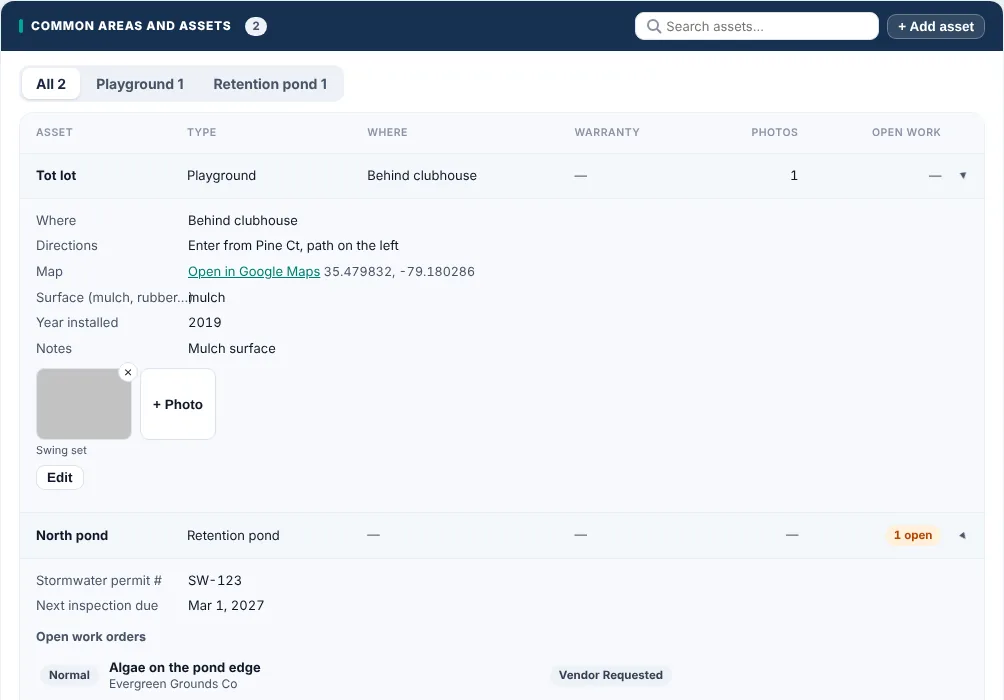
  • Where it is in the community, and directions for a vendor who has never been there
  • A map point (latitude and longitude, or Use my location on site) that opens in Google Maps
  • Warranty end date, with an alert to the association’s managers before it ends
  • Photos and PDFs (JPG, PNG, WebP, HEIC, PDF up to 10 MB), stored privately
  • The open work orders on each asset, flagged red if one is an emergency
  • Notes, active or retired, and a filter by type
Common areas and assets: a playground expanded with directions, map link, surface, year installed and a photo; a retention pond with its stormwater permit and next inspection
Sample data
06Asset types

Nineteen kinds of asset, with the fields each one needs.

Pick the type and the form asks for the details that matter for it.

PoolGatePondRetention pondIrrigationLandscape zonePlaygroundClubhouseRoadLightingMailbox kioskDog parkSports courtFountainFence / wallEntrance signParkingBuildingOther
TypeExtra details kept on the record
Retention pondStormwater permit number, last inspection, next inspection due, inspected by
PoolHealth permit number, permit expiry, capacity
PlaygroundSurface, year installed, last safety inspection
IrrigationController, number of zones, backflow test due
PondFountain or aerator, last treatment
GateAccess system, gate service phone
FountainPump, last service
Sports courtCourt type, lights
BuildingAlarm company, who keeps the keys
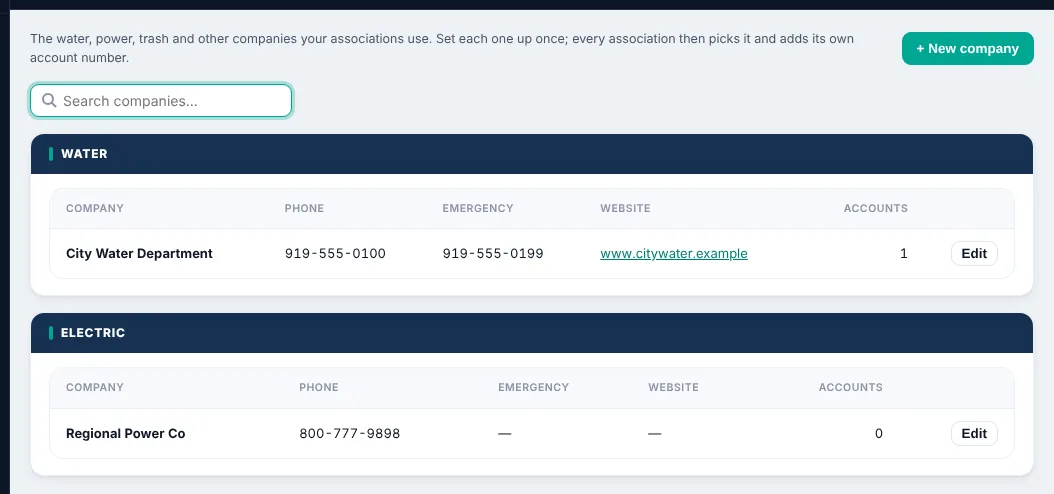
Utility providers grouped by service, with phone, emergency phone, website and number of accounts
Sample data
07Utility accounts

Every utility account, by service and by asset.

Keep the water, power, trash and other accounts each association pays, and which asset or meter they serve.

WaterSewerStormwaterIrrigation waterElectricGasTrashRecyclingInternet / cablePhoneOther
  • Company (with its phone and emergency phone), account number, meter number
  • Account holder (the name on the bill) and service address
  • For the whole association or for one asset, plus notes
  • Utility companies are set up once in Settings › Utility providers and picked for every association
  • Account numbers are visible to your staff only — never to boards, homeowners or vendors
08Service providers

Who serves this association, for what.

Link vendors from your vendor list to the association and the kind of work they do there.

LandscapingTree careIrrigationPoolPond and lakePest controlElectricalPlumbingHVACRoofingPaintingPaving and asphaltFencingGates and access controlSecurityJanitorial and cleaningGeneral contractorOther
09Approval rules and staff

Set who approves what, per association.

Every association uses the company default until you give it its own rules.

RuleWhat it meansDefault
Auto-approve up toYour manager approves quotes up to this amount when the work is within the budget line$500
Board officer up toThe president or treasurer approves quotes up to this amount$2,500
Above thatThe board votes; you set the quorumMajority of active members
StaffAssign managers and coordinators to the association, each with their own approval limit—

How quotes move through these rules: Board approvals.

10Your portfolio

All your associations, and a one-file import.

The associations list shows each one with its type, lots, board size, open work orders and your role. Company admins add associations one at a time or import the whole portfolio.
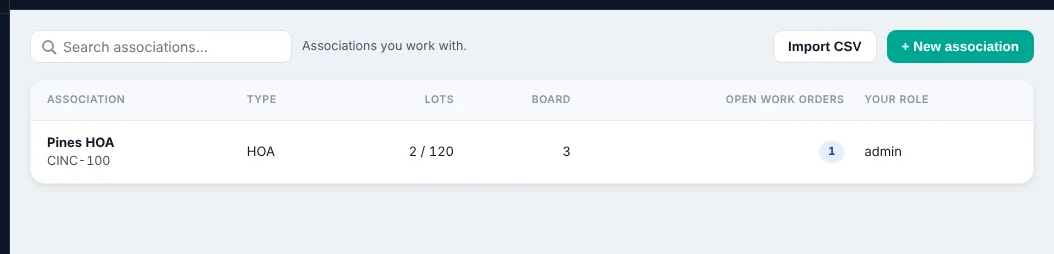
  • Types: HOA, condominium, townhome association, master association, commercial
  • Import CSV: associations, lots and homeowners from your accounting platform’s export, with a template to download
  • A preview shows how many associations, lots and homeowners will be created before anything is saved
  • Matched by billing platform ID, so importing the same file again updates instead of duplicating
  • One bad row means nothing is imported, and up to 500 associations per file
Associations list with type, lots, board, open work orders and role, and Import CSV and New association buttons
Sample data
Guide: Retention pond inspection checklist — what to inspect, how often, and what to keep on record.Read the guide →
More of the system

One system for the whole portfolio.

See it with one of your associations.

A 30-minute walkthrough with your own approval limits and vendors — or create your account and start today.