
HOA work order software, from request to closed job.

Requests from homeowners, board members, your staff and your vendors land on one board. Each one moves through the same stages, with a person responsible, a next action and a clock.
Work order board with counts by stage
01Where work comes from

Four ways a work order starts.

Every request lands on the same board, with the association, the home or asset, and who reported it.

Your staff

Association, lot or common area, asset, title, description, category and priority: normal, high, low or emergency.

A board member

From the Board Portal: what needs attention, where, how urgent and the details.

A homeowner

From the Homeowner Portal, in their own words, with how urgent it is.

A vendor estimate

A vendor proposes work they spotted; accepting it creates the work order with the vendor and quote already attached.

02Stages

Nineteen stages. Every one has an owner and a next step.

The progress bar shows seven steps — Reported, Vendor, Quote, Approval, Scheduled, In progress, Done — while the system tracks the exact stage underneath.

The main path

NewUnder reviewVendor requestedVendor acceptedQuote submittedManager reviewAwaiting approvalAwaiting boardReady to releaseApprovedScheduledIn progressCompletedVerifiedClosed

Side stages

Vendor declinedAwaiting homeownerOn holdCancelled
03The manager’s board

What needs a person, at a glance.

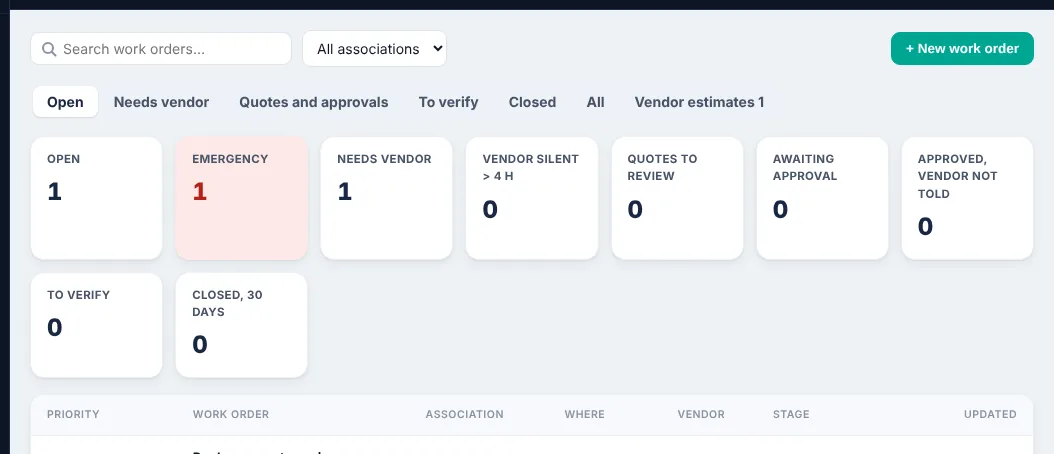
Counts across the top, filters and a search, then the list with priority, association, location, vendor and stage.
  • Open and Emergency
  • Needs vendor and Vendor silent more than 4 hours
  • Quotes to review, Awaiting approval and Approved, vendor not told
  • To verify and Closed in the last 30 days
  • Filters: Open, Needs vendor, Quotes and approvals, To verify, Closed, All, Vendor estimates
  • Filter by association and search by any word
Work order board with open, emergency, needs vendor, vendor silent, quotes to review, awaiting approval and to verify counts
Sample data
04Inside a work order

Each step is a button, and each button checks the rules.

Review and assign

  • Set category, priority and budget fit
  • Request a vendor; tick Vendors serving this property to narrow the list
  • Vendors without current insurance are listed but cannot be picked
  • Related-party vendors are labelled

Manager review

  • Every quote stops with your manager first
  • Approve and send, send to the board with notes, or ask the vendor for a new quote
  • How approvals work →

Schedule

  • Set or change the visit date once approved
  • The homeowner who reported it is told

Verify or rework

  • Verify the completed work
  • Or request rework with what still needs fixing; the vendor is told

Close

  • Close with the final cost the vendor reported
  • The homeowner who reported it is told

Cancel

  • A reason is required
  • Rejects a pending approval and withdraws open quotes
  • The vendor and the homeowner who reported it are told
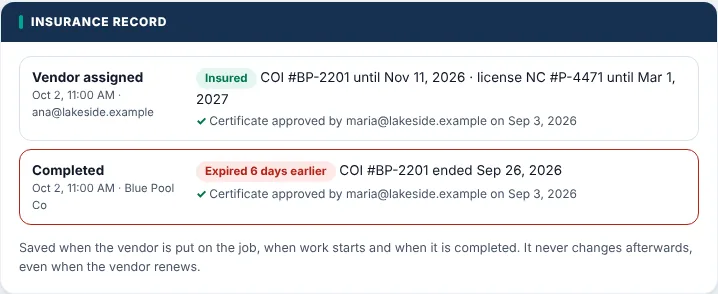
Insurance record on a work order: the certificate and license when the vendor was assigned, and the certificate expired when the work was completed
Sample data
05The record

Photos, insurance and a complete history on every job.

Everything that happened stays on the work order.

  • Before, after and other photos from your staff, the vendor, the board and the homeowner while the job is open
  • Insurance record: the vendor’s certificate and license saved when they are assigned, start and complete — it never changes afterwards
  • A warning if the vendor’s insurance had ended when the work was completed
  • Timeline of every stage change, quote, vote and decision
  • Messages sent: each notice with its channel and delivery status
  • Quotes and approvals with each board member’s vote
06Vendor estimates

Vendors can propose work. You decide.

A vendor who serves an association can send an estimate for work they spot on site.
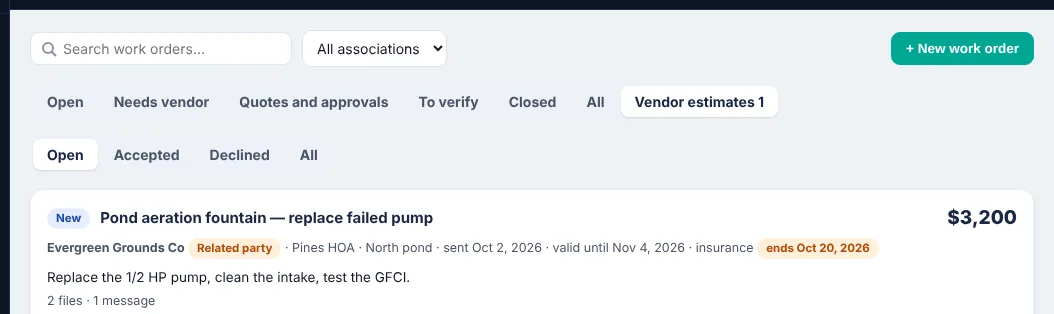
  • Title, scope, amount, where, valid-until date and up to 10 files
  • View & ask: a question thread with the vendor, and their files
  • Decline with a reason the vendor sees
  • Accept: set priority and budget fit, and the work order is created in Manager Review with the vendor and amount attached
  • Expired estimates, or vendors without current insurance, cannot be accepted
Vendor estimates inbox: an estimate with amount, vendor, related-party label, validity and the approval route it will take
Sample data
07Emergencies and budget

Emergencies first. Budget on every job.

Emergencies

  • Emergency is a priority on every work order
  • Emergencies sort first for managers and vendors
  • In manager review the manager approves an emergency right away and the vendor is told at once
  • Homeowners see “Urgent” and a reminder to call 911 for danger

Budget fit

  • Each job is marked within the budget line, outside it, or not assessed
  • Only work within budget can be approved by the manager alone
  • Spending against the annual budget shows on the association page

No double entries

  • Every button runs once per click
  • Duplicate assets, vendors, accounts and providers are refused with a plain message
More of the system

One system for the whole portfolio.

See it with one of your associations.

A 30-minute walkthrough with your own approval limits and vendors — or create your account and start today.